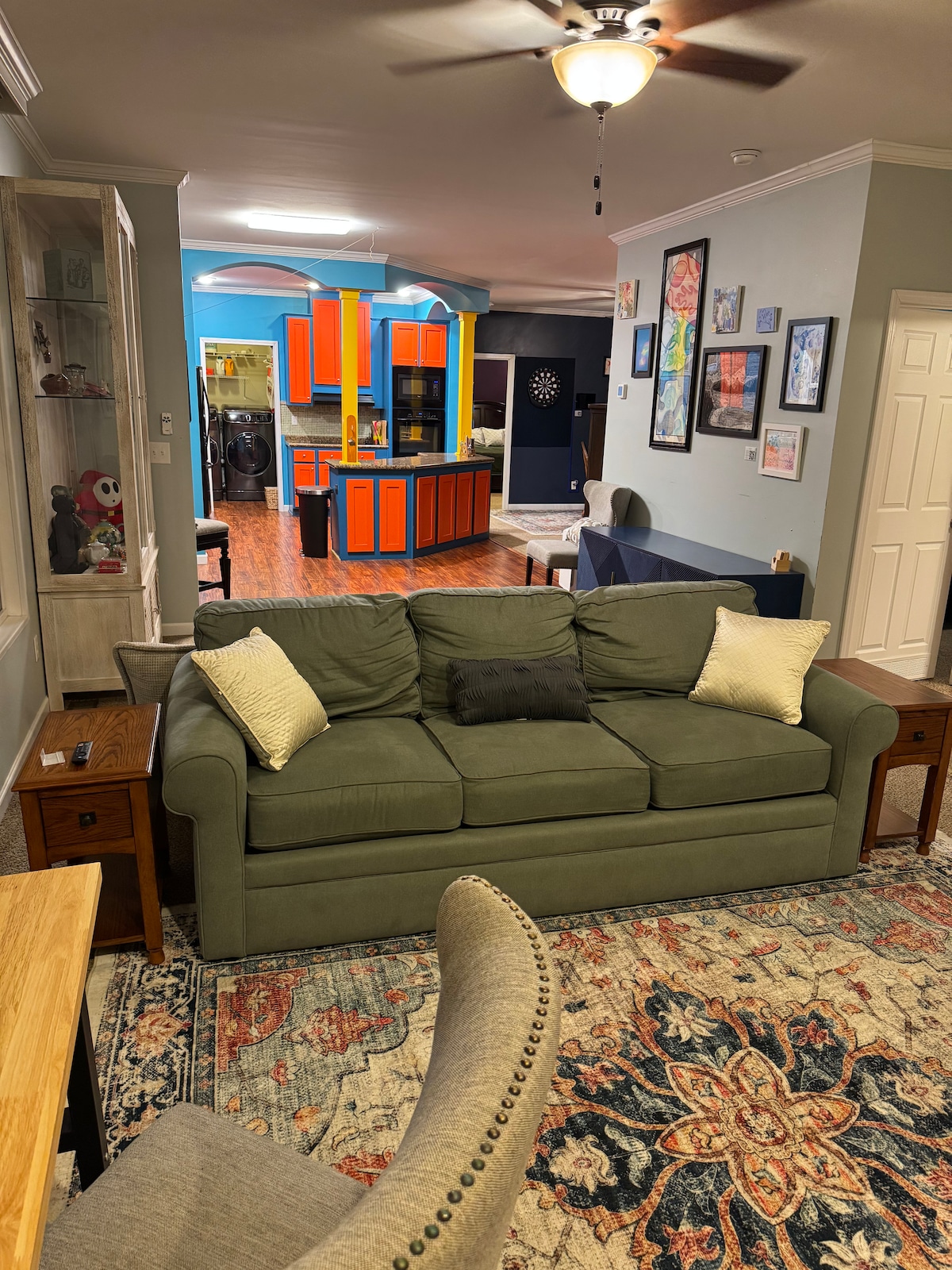
House Amenity
Dartboard Guide
293 Little Mountain Way Townsend, TN 37882
Ready to stay here?
Book directly through Airbnb or VRBO.
Quick Start
Ready to play in under a minute: 1. Wake up the iPad mounted next to the dartboard — the GRANBOARD app should already be open and signed in to the house account, so there's nothing to set up. 2. Make sure the dartboard itself is powered on. You'll see its target segments lit up faintly; if it's dark, use the power switch on the board. 3. On the iPad, tap a game mode to start (see "Games" below if you're not sure which one to pick — Count-Up is the easiest for a first game). 4. Add players by tapping "Add Player" and typing names or nicknames for your group. You don't need an account — this is just for the session's scoreboard. 5. Throw! The board detects every dart automatically and the app updates the score in real time — no need to enter anything by hand. 6. When the game ends, the app will offer a rematch or let you pick a new mode. That's really it. If anything doesn't behave as described, see "Troubleshooting" below.
Using the GRANBOARD App
The GRANBOARD app is the only thing you need to touch — the dartboard itself has no separate settings. Home screen: shows the available game modes as tiles. Tap one to start setting up a match. Player setup: add one entry per person playing. You can reorder or remove players before starting. Scoring: fully automatic. Each dart is detected the instant it lands, and the segment lights up briefly to confirm the hit. You'll see the running score and whose turn it is at the top of the screen. Missed or double-counted a dart? Look for the small edit/undo icon next to the last throw shown on screen — you can correct a single dart without restarting the whole game. Ending early: there's an "End Game" or exit option in the in-game menu if you want to stop before someone wins. Switching games: back out to the home screen at any point between games — nothing needs to be saved manually. The app is designed to be self-explanatory once you're in a game, so don't hesitate to just tap around — nothing you do in the app can damage the board.
Games
A few favorites to get you started — all selectable right from the app's home screen. 01 Games (501 / 301): The classic. Everyone starts at 501 (or 301) points and takes turns subtracting their score, aiming to hit exactly zero. Depending on the settings, your final dart may need to land in a double segment to win ("double out") — the app will tell you if that's turned on. Best for players who already know basic darts. Cricket: Close out the numbers 15 through 20 and the bullseye by hitting each one three times (a triple counts as all three at once). Once you've closed a number, you can still score points on it as long as your opponent hasn't closed it too. First to close everything with the highest score wins. A great two-player or team game. Count-Up: No target score — just throw for a fixed number of rounds and see who racks up the highest total. There's no way to "mess up" strategically, which makes it the best choice for a first game or for kids and first-time players. Other modes in the app worth trying: Shanghai (score in a specific number's single, double, and triple in the same turn), Around the Clock (hit every number 1 through 20 in order), and Bermuda Triangle (a GRANBOARD original elimination-style game). The app includes a short rules summary for every mode — look for the "?" or info icon on a game's setup screen if you want a refresher before you start. New to darts entirely? Start with Count-Up, then try Cricket once everyone's comfortable finding the numbers.
House Account
This iPad and dartboard stay signed in to this property's own GRANBOARD account — you don't need to create an account, log in, or link your phone to play. Just open the app and start a game. Because the account is shared by every guest who stays here, your games become part of an ongoing house history rather than a one-off session. We're planning to add house records and guest-vs-guest challenges (like a running leaderboard for the best 01 checkout or the most Cricket wins) in a future update — for now, just enjoy adding your own games to the mix. Nothing you do in the app is tied to your personal information — it's just a shared scoreboard for this house.
Troubleshooting
Most issues clear up in under a minute. A few common ones: Board isn't responding to throws - Check that the board's power light is on — if it's off, use the power switch on the board itself. - Make sure nothing is resting against the board's face, which can block a segment's sensor. - Try a couple more throws — a single missed detection every so often is normal. iPad or app acting up - Tap the GRANBOARD app icon to bring it back to the foreground if it's minimized. - If the app seems frozen, close it fully and reopen it from the iPad's home screen. - If the iPad itself is unresponsive, hold the power button until you're prompted to restart. Bluetooth / connection issue - Inside the app, look for a "reconnect" or connection-status icon (usually in a corner of the screen) and tap it to re-pair with the board. - Make sure the board is powered on and you're within a normal room's distance of it — Bluetooth range is limited. Still stuck? If none of the above helps, please reach out using the host contact info on this property's Welcome page and let us know what happened — we'd rather come fix it than have it slow down your game night.